

-
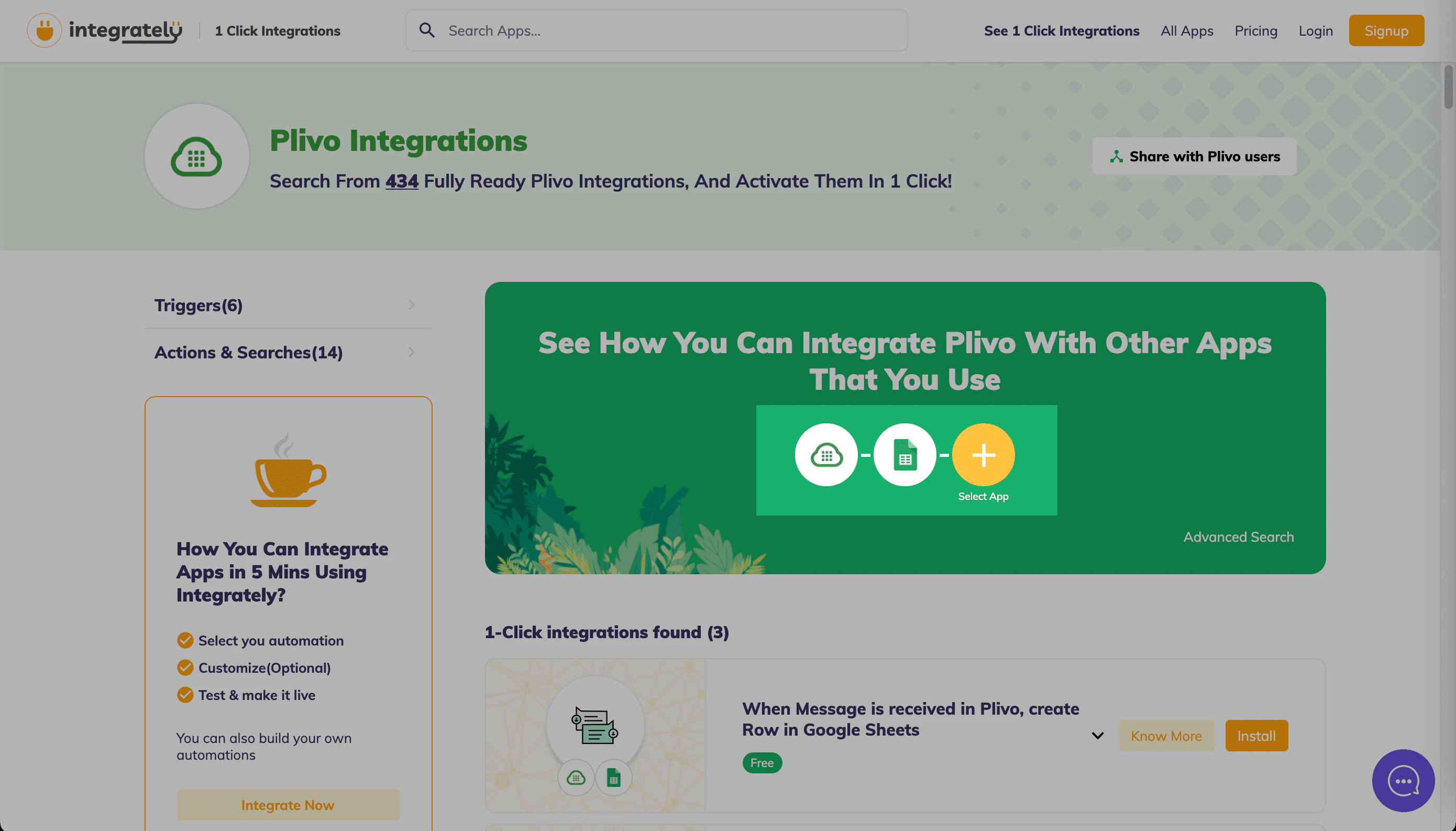
Go to the Integrately Store, click on the “+” sign, and add the Google Sheets app next to Plivo.
-
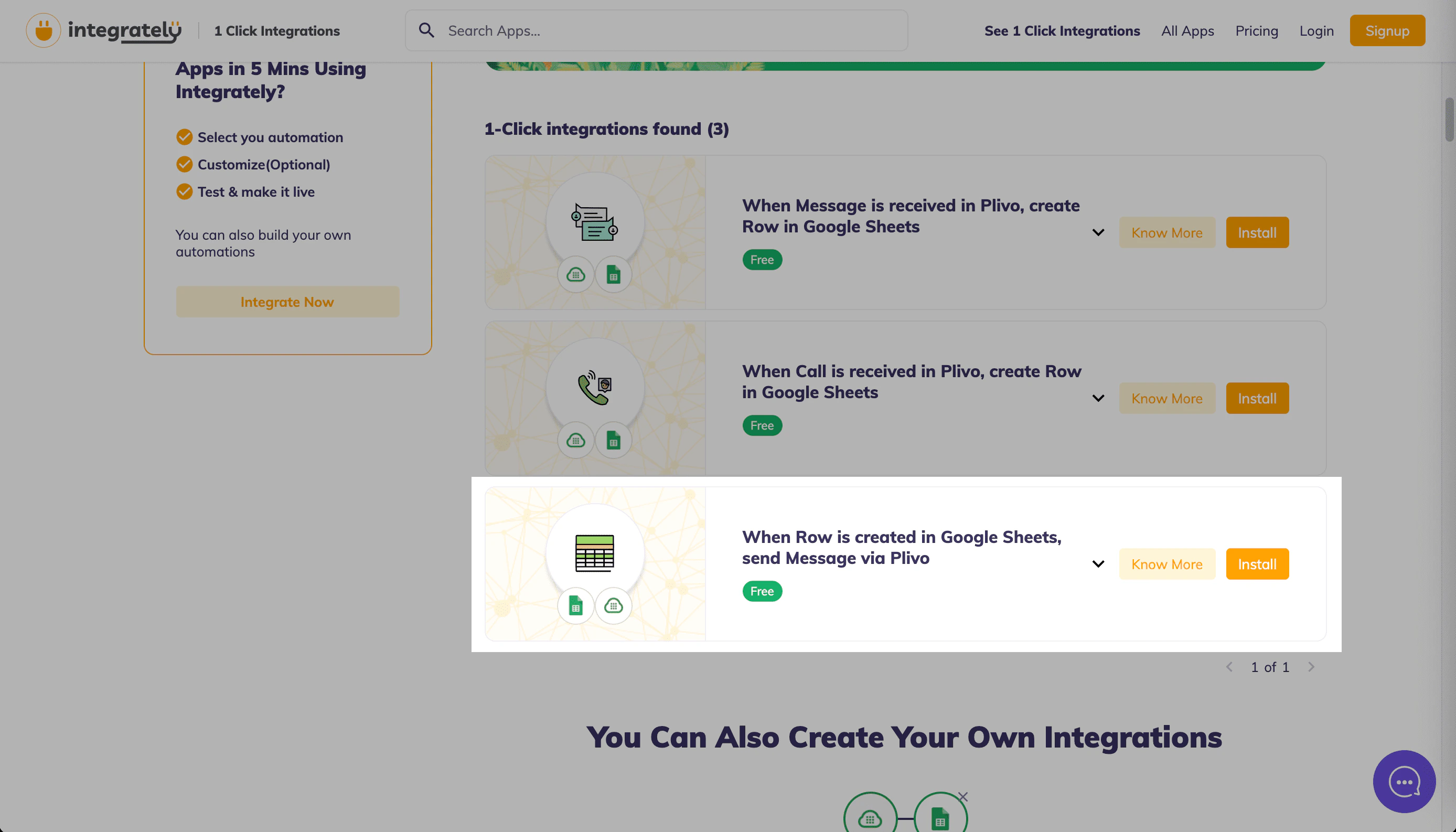
From the “1-Click integrations found” section, select “When Row is created in Google Sheets, send Message via Plivo” and click Install.
- On the next screen, click Yes, Install to load the automation.
-
Connect your Google account and your Plivo account using valid authentication credentials.
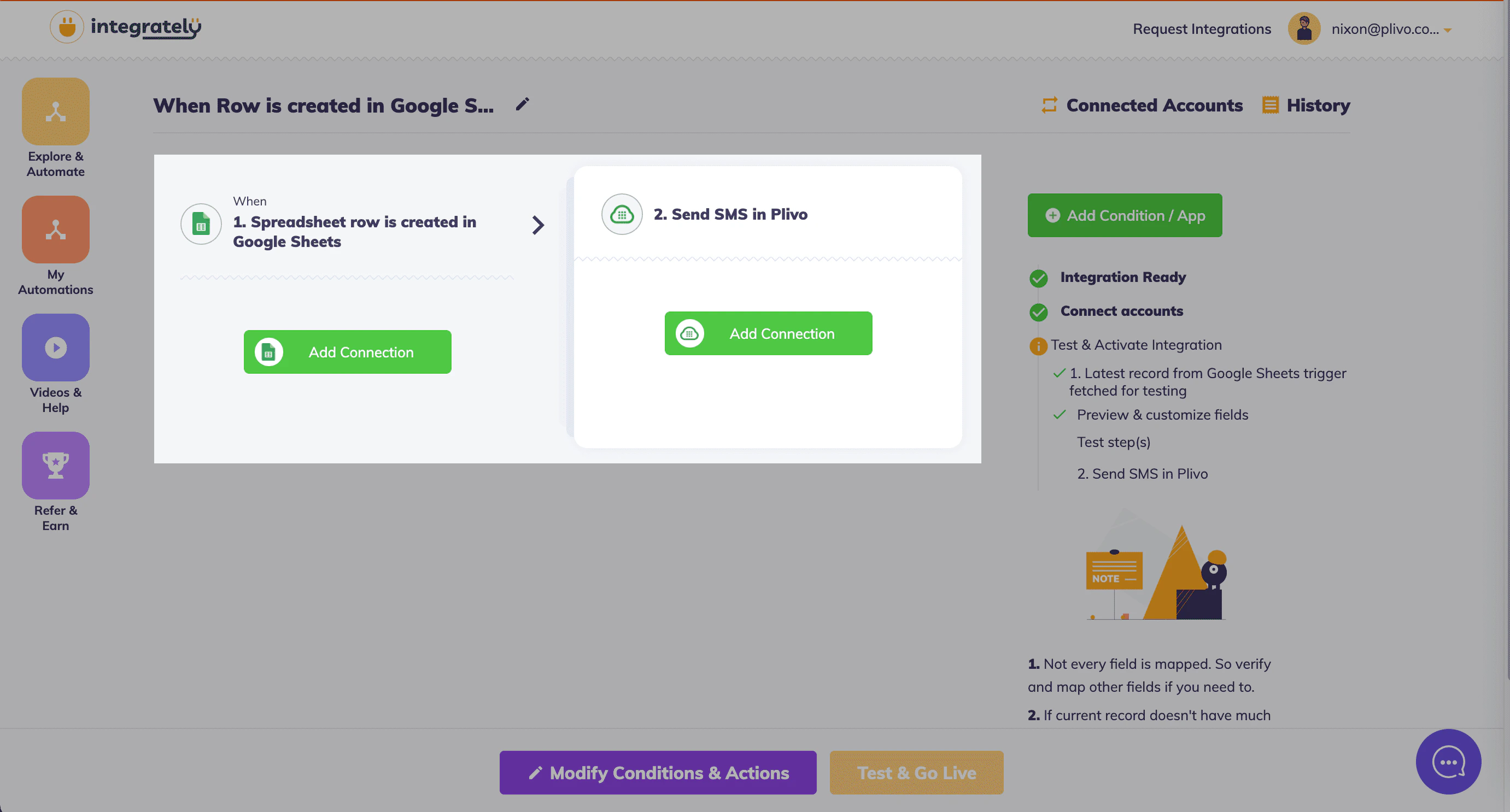
- Select the Google Sheet name and Spreadsheet name for which you wish to implement the automation.
- Fill in the source number, destination number, and text to send.
- Click Test & Go Live to test your automation.
Integrately
Example automation
You can create an automation to send an SMS message when a row is updated in a Google Sheet.